Sending Referring Letter or Patient Note to a Referring Provider or PCP #
You can send patient note or referring letter to patient’s PCP or referring provider through Legend, given that the providers’ information, including Fax number is saved in Legend.
You can do add a physician inside Legend through Settings > Providers List.
Selecting PCP and Referring provider for a patient #
Selecting PCP #
You can select a patient’s PCP through:
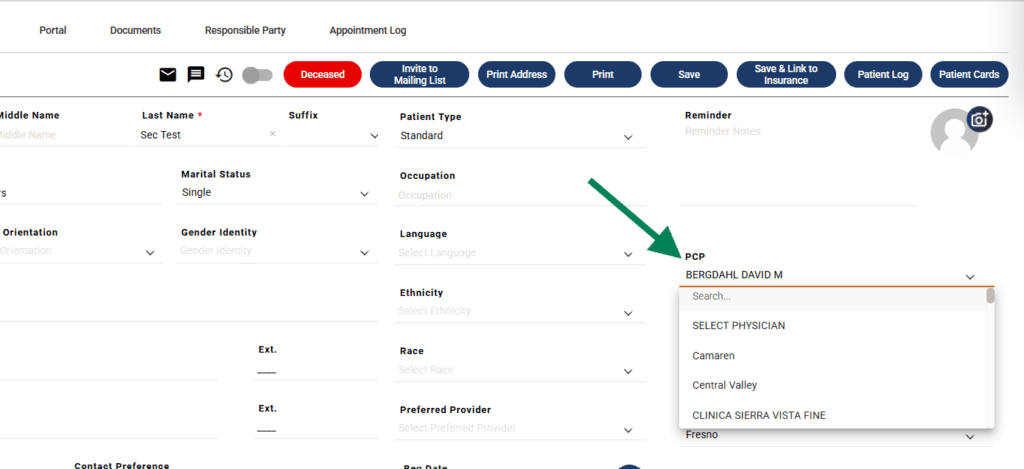
- Demographics:
- Go to Patient > Demographics
- Select PCP in the PCP drop-down
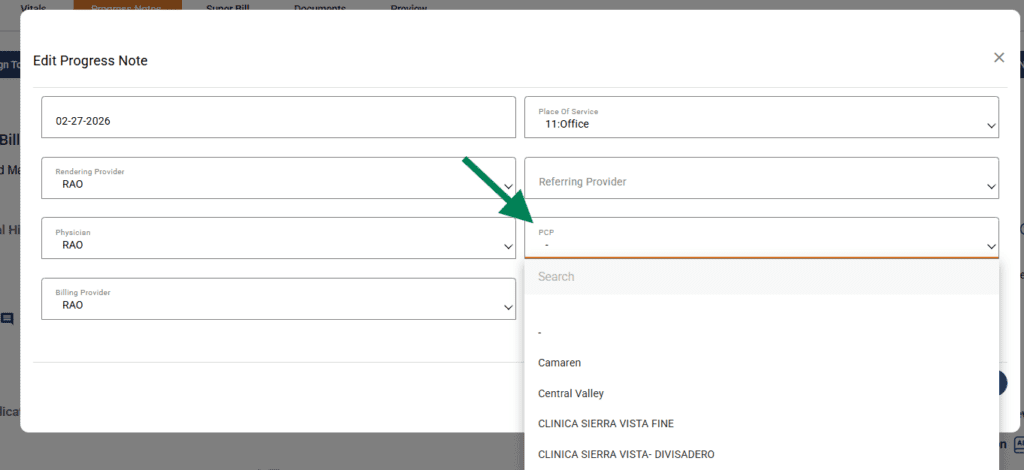
- EMR Progress note:
- Go to progress note
- Click on DoS inside the progress note
- Select PCP
Selecting Referring Provider #
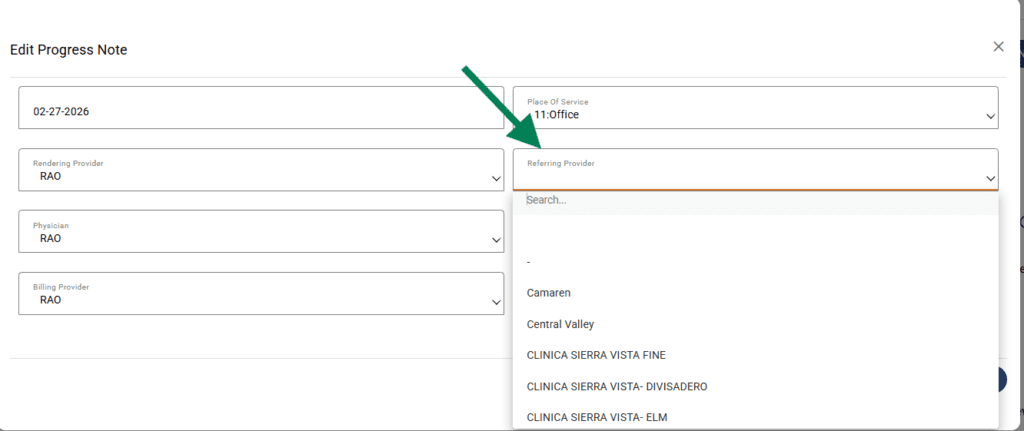
You can select a referring provider through:
- EMR Progress note
- Click on DoS inside the progress note
- Select Referring Provider
Faxing referring letter or full note upon Sign Note #
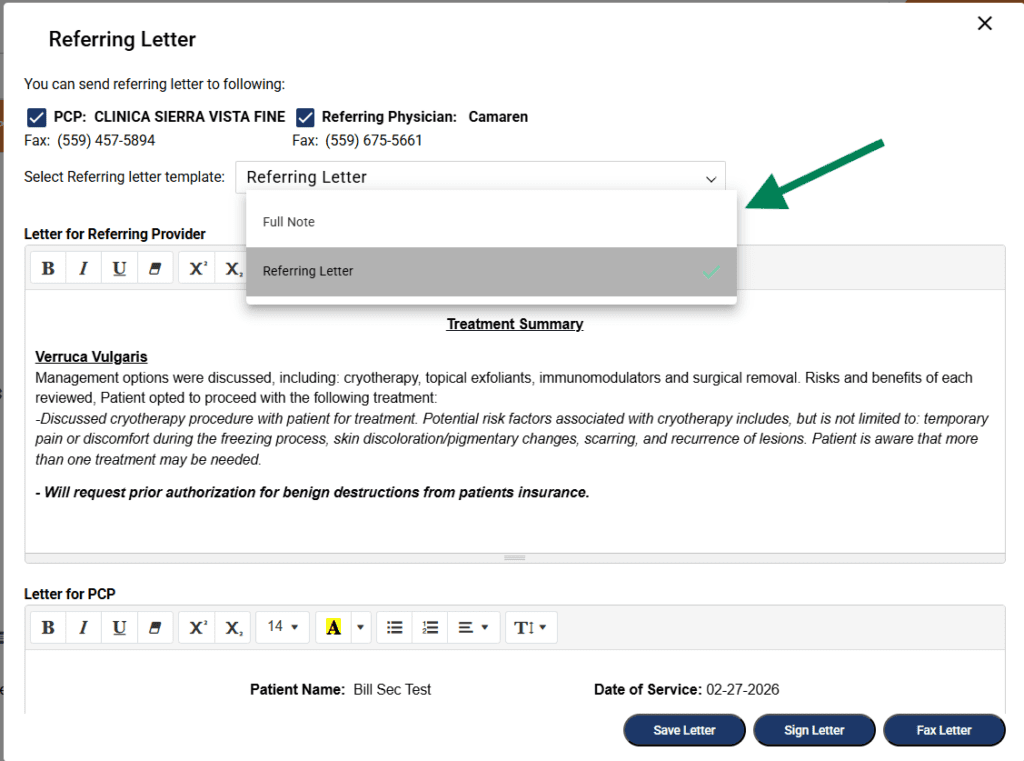
When provider clicks the Sign Note button, a pop-up is displayed. You can select whether you want to send Referring letter or Full note to the providers.
You’ll also see three buttons at the bottom: Save letter, Sign letter, Fax letter
Save Letter: #
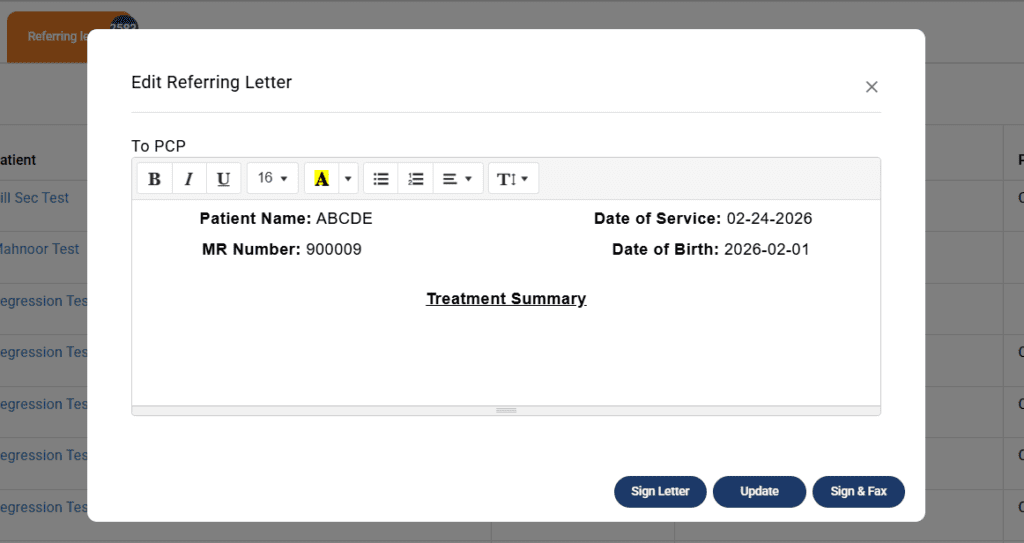
If you click this button, the referring letter goes to the MD tab for provider signature.
- Go to MD tab
- Click on Referring letter sub-tab
- You’ll see a list of all the referring letters that need to be signed by the provider
- Provider can click the Edit icon in front of the letter to Sign or Sign & Fax it
Sign Letter: #
If you click Sign Letter button, it goes under Admin > Back Office > Referring Letters.
- Go to Admin tab
- Go to Back Office
- Select Referring Letter drop-down
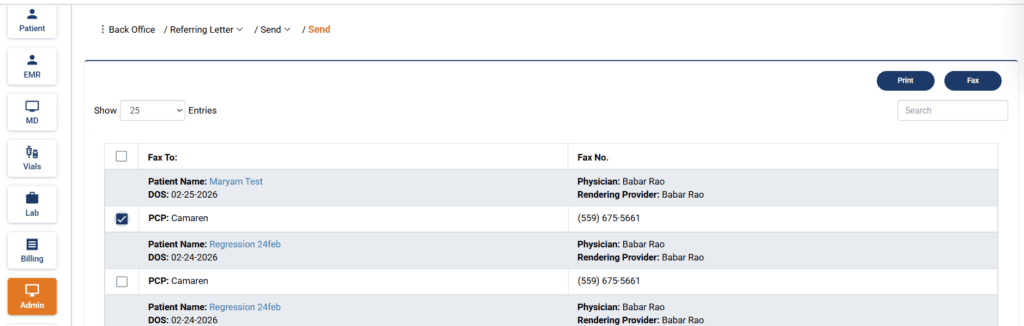
You’ll see a list of signed referring letters that can be printed or faxed
- Select the letter you want to print or fax
- Click the Print or Fax button
- The record moves to Referring Letter > Sent, once the letter has been sent
Fax Letter #
You can use this option to sign and fax the letter directly to the providers. It goes directly to Admin > Back Office > Referring Letter > Sent.
Faxing Referring Letter or Full Note through the Preview tab #
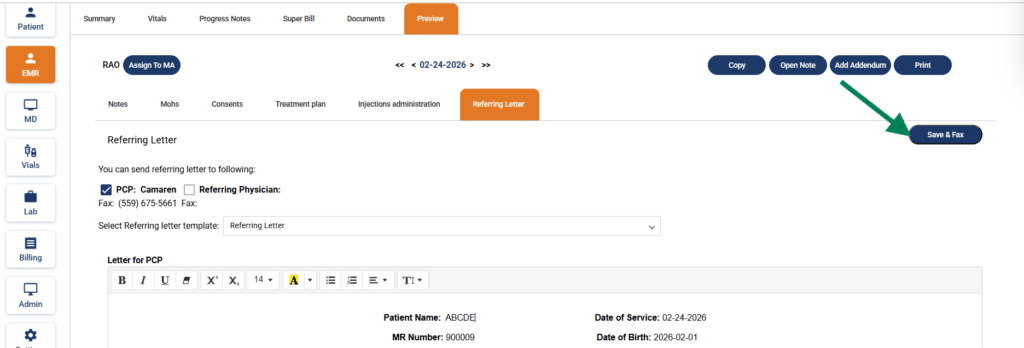
In the EMR section, you’ll see a Preview tab
- Go to the Preview tab
- Go to the Referring letter sub-tab
- Select Referring letter template
- Click Save & Fax
- Referring letter is faxed and record is sent to Admin > Back Office > Referring Letter > Sent