Patient Communication #
Patient portal messages #
Users from offices can send messages to patients on their patient portal. When a message is sent, patients receive an email and SMS on the address and number saved on file.
Users can send a message by:
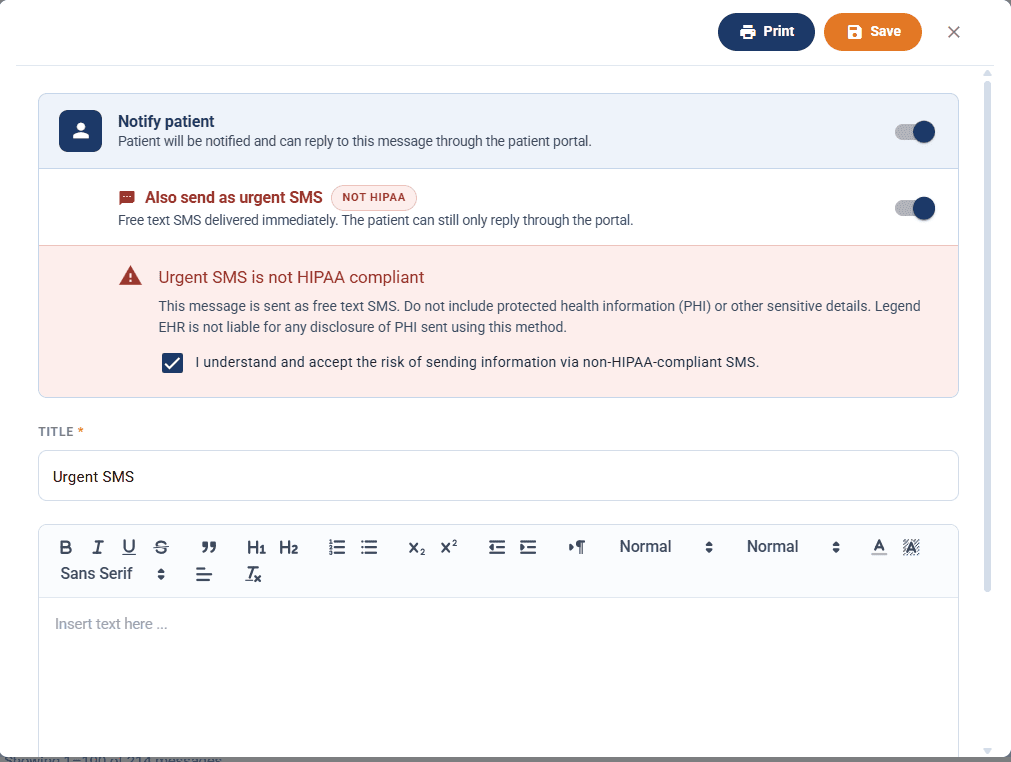
- Opening a patient chart
- Clicking on the ‘Message’ icon
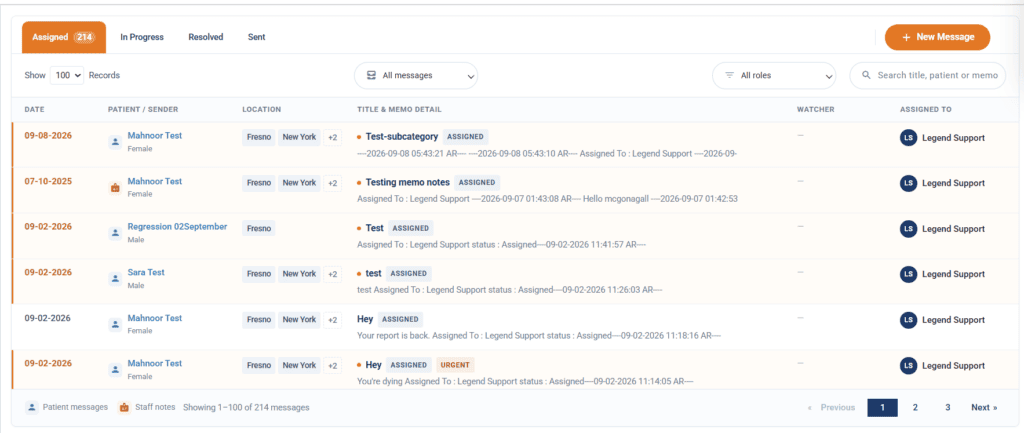
- Click on New Message button
- Toggle on Notify Patient toggle
- Type in title and message body
- Select user group to assign message to a user
- This is the user who will receive the message when patient replies
- Selecting a user group is mandatory for patient messages
Message will be sent to the patient. When the patient replies, the reply will be received by the user you selected in the ‘Select user group’ drop-down.
Note: #
- If ‘Notify patient’ toggle isn’t on, the message will NOT go out to the patient.
- Once a message has been saved (either toggle on or off), the notify toggle becomes uneditable to keep patient and in-office messages separate
Urgent SMS – Free-form SMS #
Users can send a patient message as an urgent text message in addition to the patient portal notification, for cases where a patient needs to see something immediately.
How to use it
- Open the patient’s chart and go to the Messages tab.
- Click New Message.
- Turn on the Notify patient toggle. The message will be delivered to the patient portal, where the patient can read and reply to it.
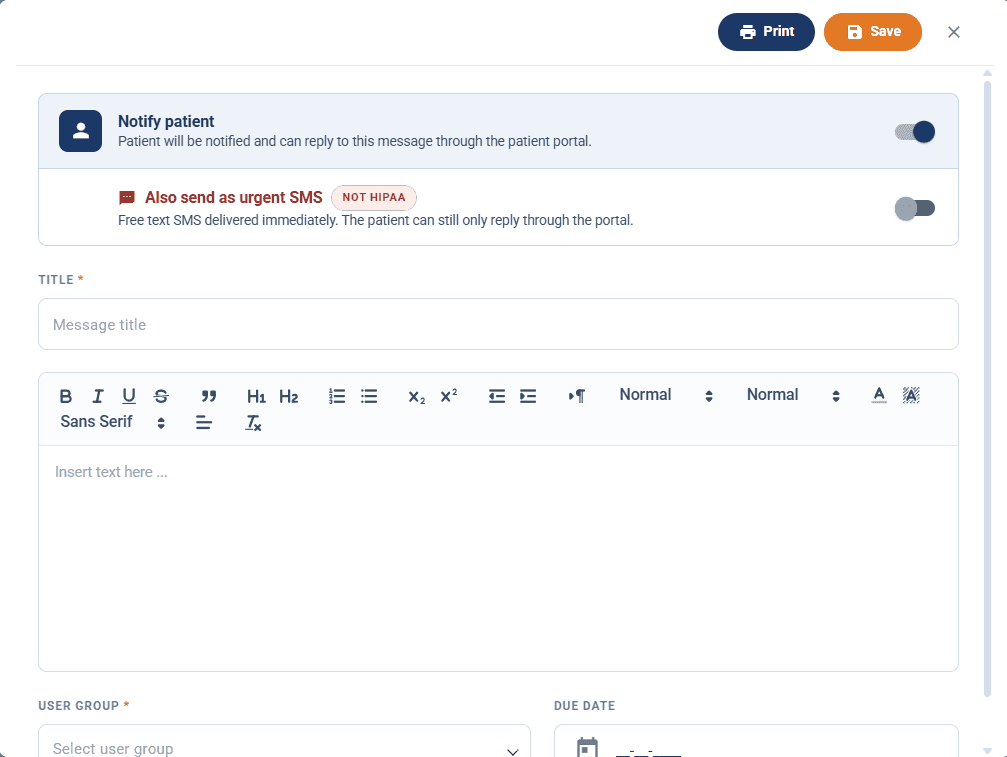
- Turn on the Also send as urgent SMS toggle that appears underneath. This delivers the message body as a plain text message to the patient’s mobile number, immediately.
- A non-HIPAA warning appears. Read it, then check I understand and accept the risk of sending information via non-HIPAA-compliant SMS. The message will not send as SMS until this box is checked.
- Enter the title and message body, then click Save to send.
Note: #
- Urgent SMS is sent as free-form text and is not HIPAA compliant. Do not include PHI or other sensitive details in a message you are sending this way. Legend EHR is not liable for disclosure of PHI sent using this method.
- Patients cannot reply by text. Replies still go through the patient portal only, so the SMS should direct the patient there or to your office.
- The urgent SMS option is only available when Notify patient is on; it is not a standalone delivery method.
- An SMS fee is charged to office when using this method