
Table of Contents
Add a Fee Schedule #
- Go to Settings
- Click on Fee Schedule

- Click on the Add button to add a new Fee Schedule.
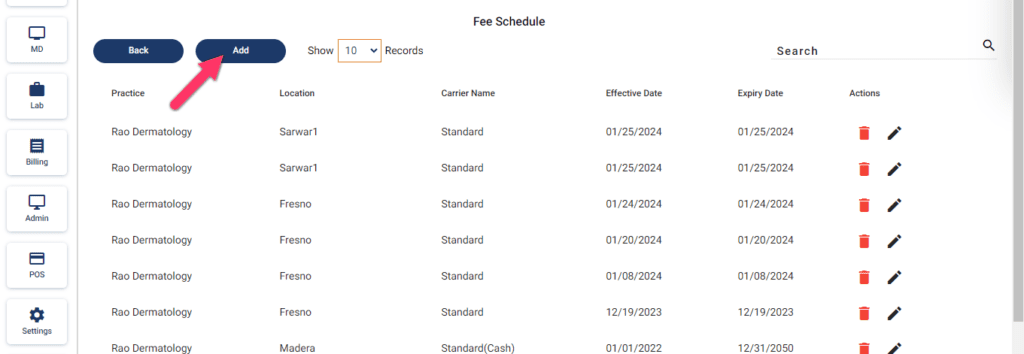
- A window to Create Fee Schedule will be opened.
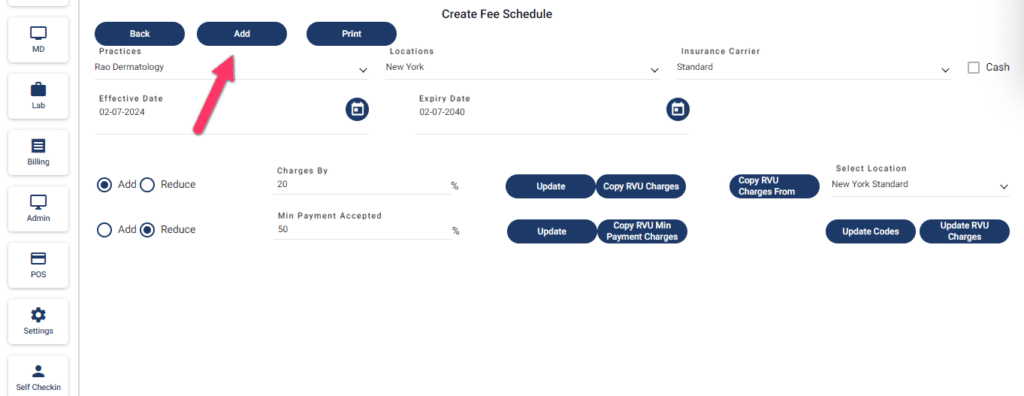
- Fill in the details as shown in the image below.
- For insurance fee schedule, keep the Cash checkbox unchecked
- For self-pay fee schedule, check the Cash checkbox
- Add effective and expiry dates
- Then click on the Add button.
RVU Charges #
Copy RVU from another fee schedule #
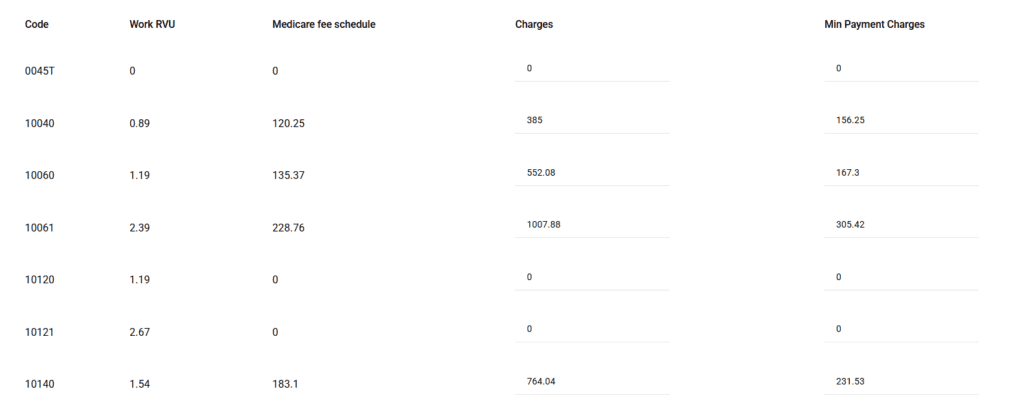
RVU charges are the Medicare fee schedule charges for CPTs for the year. You can copy these charges from fee schedules you have already set up by using ‘Copy RVU Charges From‘ drop-down.
The copied RVU charges will be populated in the Medicare fee schedule column
Copy Medicare fee schedule into charges column #
If you’re using Medicare fee schedule for charges, click on the Copy RVU Charges button. It’ll populate Medicare charges into the charges column
Minimum payment charges #
Minimum payment charges is the minimum acceptable threshold for a payment received from insurance. If you want to set up medicare fee schedule as your minimum payment charges, click Copy RVU Minimum Payment Charges button
Update fee schedule #
In case you add new procedures to your system, and want to add charges against them:
- Open the fee schedule you want to update
- Click the Update Codes button
- This will load latest CPT codes into the fee schedule
- Add charges and minimum payment charges for the CPT code
- These charges will be used for your claims


