
Table of Contents
Public appointment booking for patients #
Online Booking URL #
Each office now has a dedicated, unique URL that can be added to their website, allowing patients to book appointments directly, without needing to log in to the patient portal.
What’s New #
- A unique booking URL is generated for each office/location.
- Offices can embed or link this URL on their own website for patients to access.
- Patients can book appointments directly through this URL without portal login or account creation.
- Patients booking through this URL go through the existing booking flow — including identity matching, OTP verification, and session handling — the same as booking from within the portal.
- If a new patient is booking through the URL, their patient chart is created in Legend
- A blue user icon is displayed on the schedule for appointments booked through the public URL, distinguishing them from standard appointments
Benefits #
- Reduces friction for new or first-time patients who don’t have portal credentials.
- Gives offices a self-service booking option to promote on their own websites.
- Speeds up the appointment booking process by removing the login step.
Workflow #
- Recaptcha verification
- Select office location
- Select whether existing or new patient
- Existing patient:
- Enter first name, last name and DoB
- If record matches, select appointment type and reason
- Select provider and Slot
- Verify details and confirm appt
- Verify OTP sent on the email & number saved on file
- New patient
- Select appointment type and reason
- Select provider and Slot
- Enter first name, last name, mobile number and DoB
- Payment method
- Verify OTP
- Existing patient:
Booking requests #
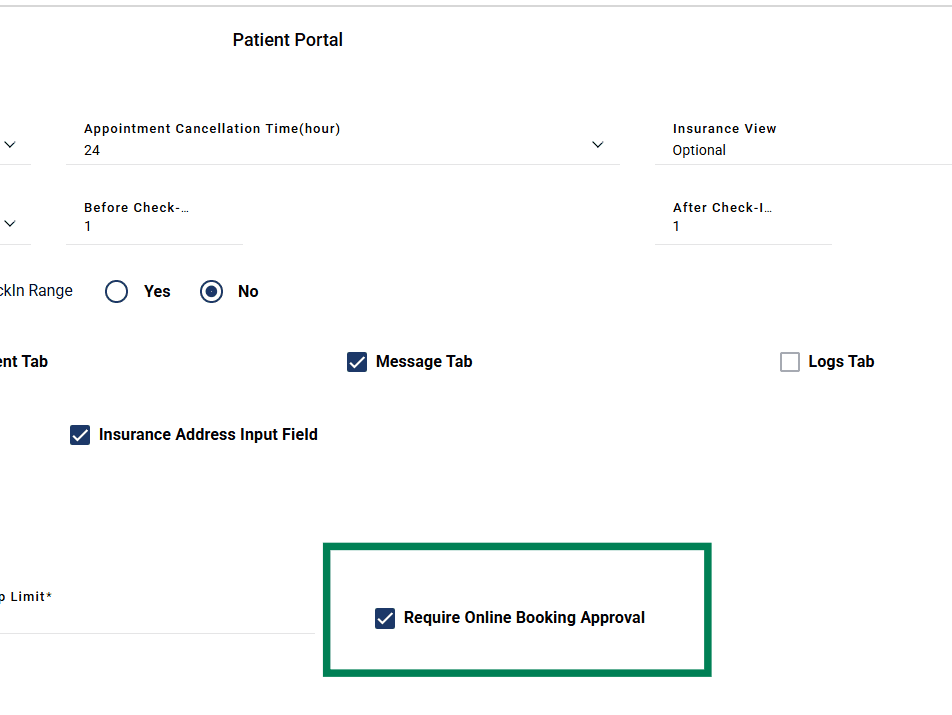
Offices can configure if they want to receive booking requests for approval or appointments be directly created on schedule without requiring approval
- Go to Settings
- Go to Practices > Manage locations
- Go to Patient portal in front of location
- There’s a checkbox Require online booking approval
- Check or uncheck this based on office requirements
More information to set up availabilities for online booking can be found at:


