Rooms and counts in the header #
The Rooms pop-up provides a quick, real-time overview of patient flow in the clinic, including check-in and self check-in statuses and rooming progress.
Understanding the counters #
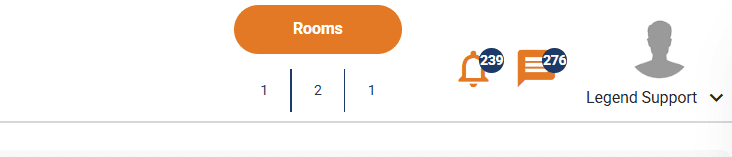
Below the Rooms button, you will see three counters:
First counter #
Represents the total number of patients who went through the self check-in process, resulting in one of two outcomes:
-
- Patients who successfully self checked-in but have an outstanding balance/copay
- Patients who failed self check-in because of any of below reasons:
- Outstanding balance or copay, or outstanding balance + copay > $100
- Patient needs to update their insurance information
- Patient is late/early for their appointment
These patients typically require front desk intervention to collect payments and/or manually check patients in.
Second counter #
Represents patients who are ready to be roomed:
-
- Patients who successfully self checked-in (no issues)
- Patients who were manually checked-in by staff
Third counter #
-
- Patients who have already been assigned to a room
The Rooms pop-up #
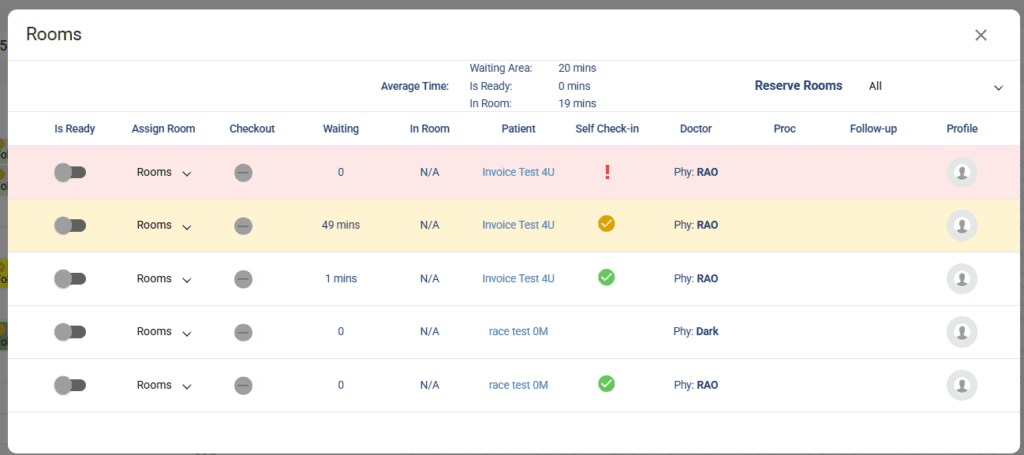
This screen gives an overview of in-clinic patients, specifically the patients who went through self check-in process, patients who were manually checked-in and patients who are currently in rooms with providers
- Click the Rooms button on the schedule screen
- A pop-up will appear displaying patient self-check-in, Is Ready and room statuses
Understanding the Self check-in column and different status indicators #
Inside the Rooms pop-up, you’ll see a Self check-in column. This column has visual indicators to help you quickly assess the status of patients who attempted to self check-in.
This column will display THREE indicators:
- ✅ –> Successful self check-in; patient didn’t encounter any issues during the self check-in process
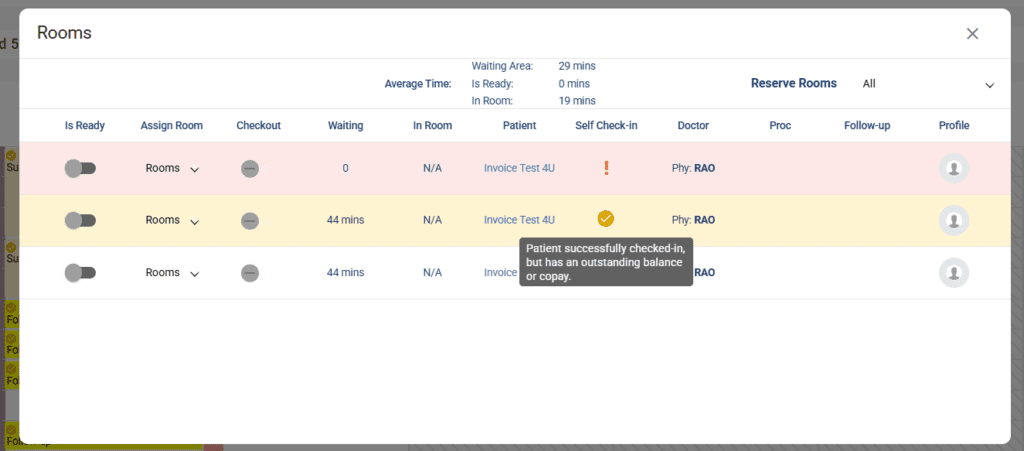
 –> Successful self check-in, but the patient has an outstanding balance or copay
-
Hover over the icon to see a tool-tip:
“Patient successfully checked-in, but has an outstanding balance or copay.”
-
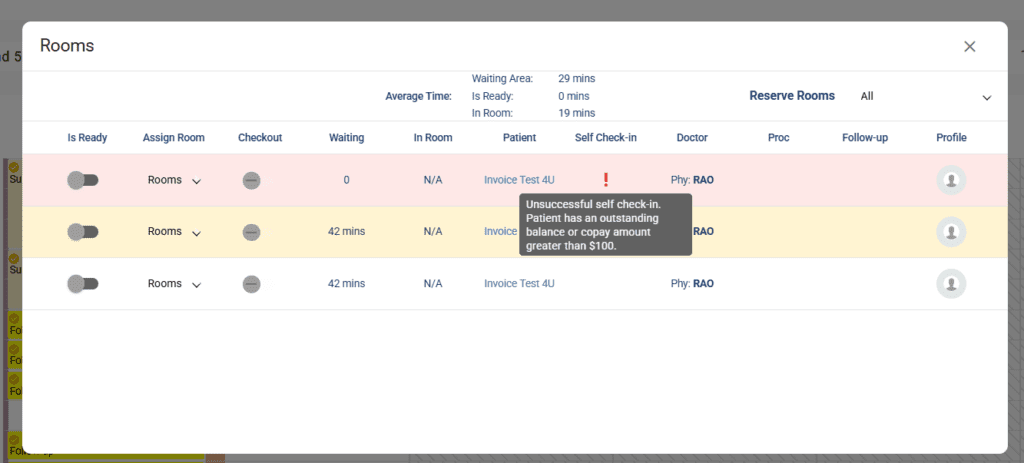
- ❗ –> Unsuccessful self check-in. The patient has not been checked-in. You cannot mark this patient ‘Is Ready’ or assign a room unless manually checked-in by the front-desk
-
Hover over the icon to see a tool-tip with the reason, such as:
- Outstanding balance/copay exceeds $100
- Patient arrived too early or late for appointment
- Patient needs to update insurance
-
 –> Successful self check-in, but the patient has an outstanding balance or copay
- No indicator: Patient checked-in manually