Patient Feedback in Legend EHR #
Description: #
This feature gives offices the ability to get feedback from patients about their experience at the office.
Post-checkout SMS #
One text sends automatically when the patient is checked out, to the mobile number on their chart.
The message does two jobs. It tells the patient to call the office or message through the patient portal if their prescription has not arrived by the same time the next day, and it gives them.
Patient feedback page
A link in the checkout SMS opens a Legend EHR page built for phones. It shows, in order:
- Urgent contact information — the clinic’s phone number and a link into the patient portal, at the top where a patient looking for help will find it.
- Visit summary — a short recap of the appointment.
- Feedback questions — rating the provider, rating the front-desk staff etc. Practices can set up these questions as per need.
Questions save as the patient answers them, so a patient who leaves halfway through still returns usable feedback. Feedback is attached to the visit and visible to the practice in the reporting dashboard.
Google review request
If offices have set up their Google review page placeholder in Legend configuration, after the feedback questions are submitted, the page shows a button that opens the Google review box for that specific clinic, with the patient’s own Google account signed in. The patient writes and submits the review on Google; Legend EHR never writes, edits, or rates on their behalf.
Every patient sees the button, whatever they scored in the internal review. Showing it only to satisfied patients is review gating, which Google prohibits and penalizes by removing a location’s reviews.Configurations:
This feature is configurable on several levels by the practice as a whole and its different locations:
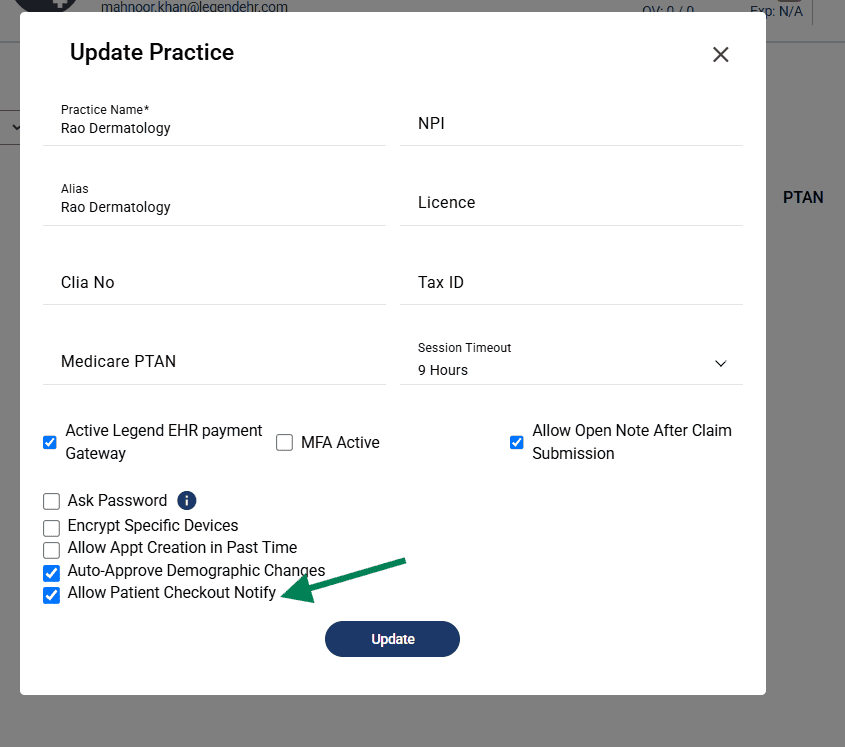
- SMS on checkout: The first configuration is on a practice level. When turned on, an SMS is sent to patients 30 mins after their checkout. This SMS contains intimation about what to do if patients were prescribed a medication but don’t receive it within 24hrs. It also has a link to their visit summary and payment made on the date of service.
-
- Go to Settings > Practices.
- Click the Edit icon
- Check this checkbox
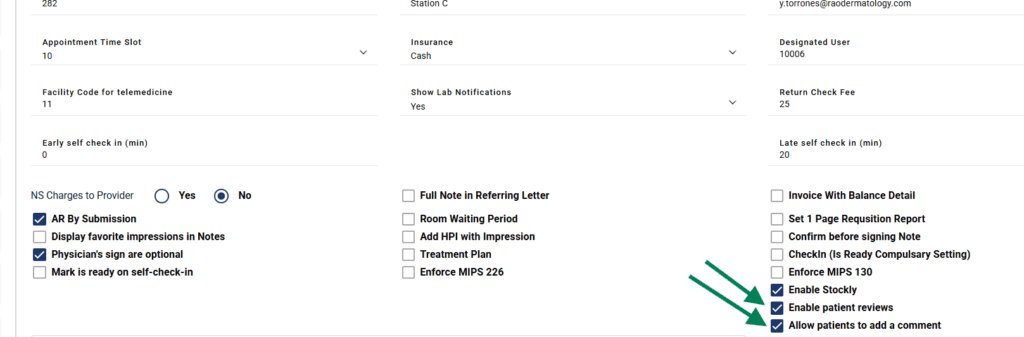
- Internal reviews: This configuration is on office level. If an office wants to get internal reviews from patients, they can turn this configuration on. Go to Settings > Practices > Manage locations > Location settings
-
-
- Check these checkboxes to send internal review questions and optional text field for patients
-
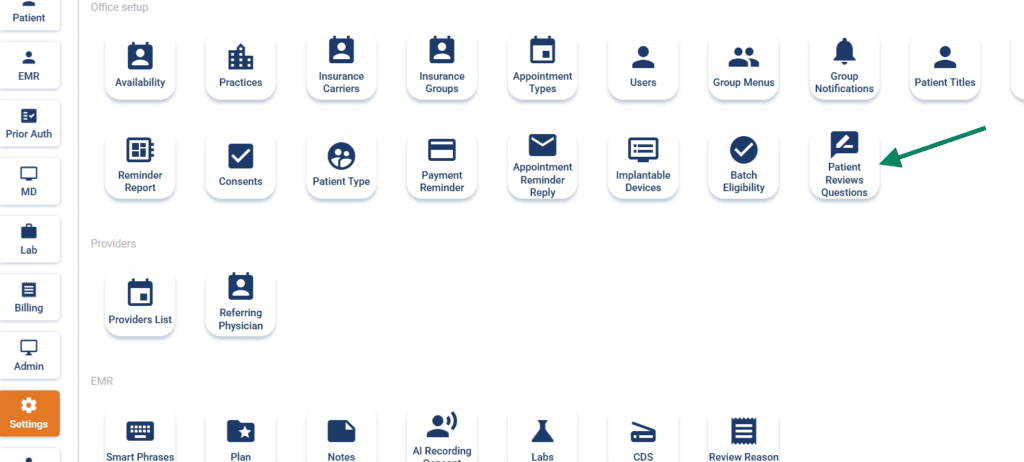
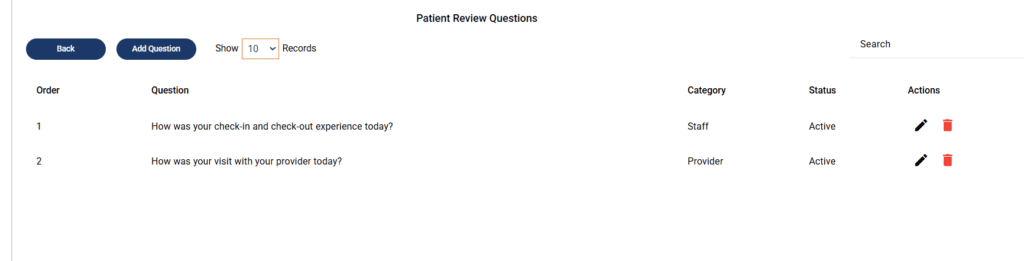
- Review Questions: Offices can ask as many questions from the patients as needed. Answers to all the questions are recorded and shown in an analytic report available in Legend. Offices can also give a text field to patients to write a review. All answers are based on 1-5 star ratings.
- Go to Settings > Patient Review Questions
- Click Add Question button
- Select the category
- Staff, or
- Provider
- Add display order
- It’s the order in which questions are displayed on the landing
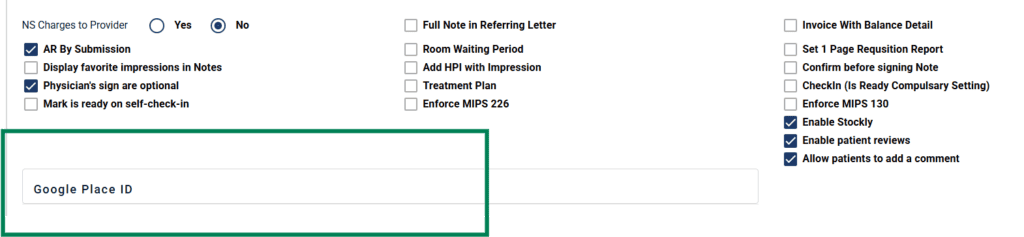
- Google reviews: If offices want to get google reviews from patients, they can set up a google place ID in Legend settings, where patients will be redirected once they complete the internal review
- Go to Settings > Practices > Location settings
- Add google place ID
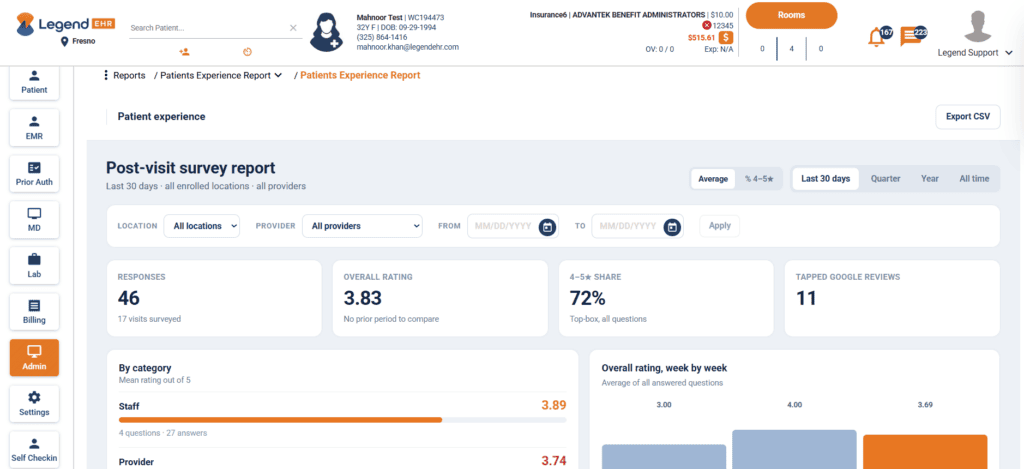
- Reporting: An analytic report is generated in Admin > Reports section with the following information:
-
- Total responses
- Mean rating for all the questions
- Overall mean rating
- Share of 4-5 star reviews
- Number of patients who went to Google review page after internal review
- Week by week variance
- Provider break-down of rating for provider questions
- Patients who should be contacted for a follow-up (left 3 stars or less in any of the questions)
-